PROJECTS / NETWORK SECURITY
pfSense VLANs OpenVPN Suricata IDS Firewall

pfSense Firewall Secure Architecture

LAN/WAN segmented lab across 3 VLANs with site-to-site VPN, per-segment firewall rules, and Suricata running in inline IDS mode — actively detecting intrusions during red team exercises.

2024 · VirtualBox Lab · 3 VLANs · Site-to-Site VPN · IDS inline mode
3
VLANs
Segmented
3
VLANs
LAN · OPT1 · OPT2
VPN
Site-to-Site +
OpenVPN clients
IDS
Suricata inline
across all interfaces
01. Project Overview

This started as a school project and turned into something I kept building long after the course ended. I wanted to understand what a real perimeter actually looks like — not just read about it. So I built one in VirtualBox: pfSense as the firewall, three isolated VLANs, a working VPN, and Suricata running in a mode where it can actually drop packets, not just complain about them.

The three-segment design (LAN for trusted clients, OPT1 as a DMZ-style server network, OPT2 as the isolated attacker network) wasn't chosen randomly — it mirrors what you'd see in an actual enterprise: a trusted zone, a service zone that needs limited access to production, and a segment you assume might be compromised. Everything between them is default-deny unless I explicitly wrote a rule for it.

Once the segmentation was solid, I layered in VPN (OpenVPN with certificate auth, not shared keys — more setup, but stolen credentials alone can't get you in) and then ran attack traffic from OPT2 to see what Suricata would catch. The alerts forwarded into my Splunk instance. That's when it clicked: a firewall log and an IDS alert on the same event tell a much more complete story than either one alone.

"I kept expecting the firewall to be the interesting part. Turns out it was alert tuning — figuring out what was actually malicious versus what was just my lab being noisy."

02. Interface Walk-through

The interface assignments table below reflects the actual VirtualBox setup: four virtual NICs, each bound to a separate internal network adapter. Getting pfSense to recognize all four adapters on first boot took more troubleshooting than expected — the adapter ordering in VirtualBox doesn't always match what pfSense presents during interface assignment. The Suricata alerts at the bottom are from a live exercise, not synthetic data.

Interfaces → Interface Assignments
InterfaceNetwork PortIP
WANem0 (vtnet0)DHCP (ISP)
LANem1 (vtnet1)192.168.1.1/24
OPT1em2 (vtnet2)192.168.2.1/24
OPT2em3 (vtnet3)192.168.3.1/24
Status → DHCP Leases
IP AddressHostnameState
192.168.1.101WIN-CLIENT-01active
192.168.1.102WIN-CLIENT-02active
192.168.2.101KALI-OPT1active
192.168.3.101UBUNTU-OPT2active
Services → Suricata → WAN Alerts ● 47 events
2024-01-15 14:32:18 HIGH ET SCAN Nmap Scripting Engine User-Agent Detected — 192.168.3.50192.168.1.10
2024-01-15 14:33:41 HIGH ET EXPLOIT Metasploit Meterpreter Reverse Shell — 192.168.3.50:4444192.168.1.10:55123
2024-01-15 14:35:02 MED GPL ATTACK_RESPONSE id check returned root — 192.168.3.50192.168.1.10
2024-01-15 14:38:19 MED ET SCAN Hydra SSH Brute Force — 192.168.2.55192.168.1.10:22 (34 attempts/s)
2024-01-15 14:41:07 LOW ET POLICY SSH Session in Progress — 192.168.3.101192.168.1.10:22
03. Network Architecture

The decision to use three segments instead of two came from thinking about what I actually wanted to test. LAN is where you'd put workstations in a real environment. OPT1 is where servers live — things that need limited, specific access to LAN services (like a Splunk indexer) but shouldn't be able to roam freely. OPT2 is the attacker box. The whole point is that OPT2 has no legitimate reason to ever talk to LAN directly. If traffic is crossing that boundary, something is wrong.
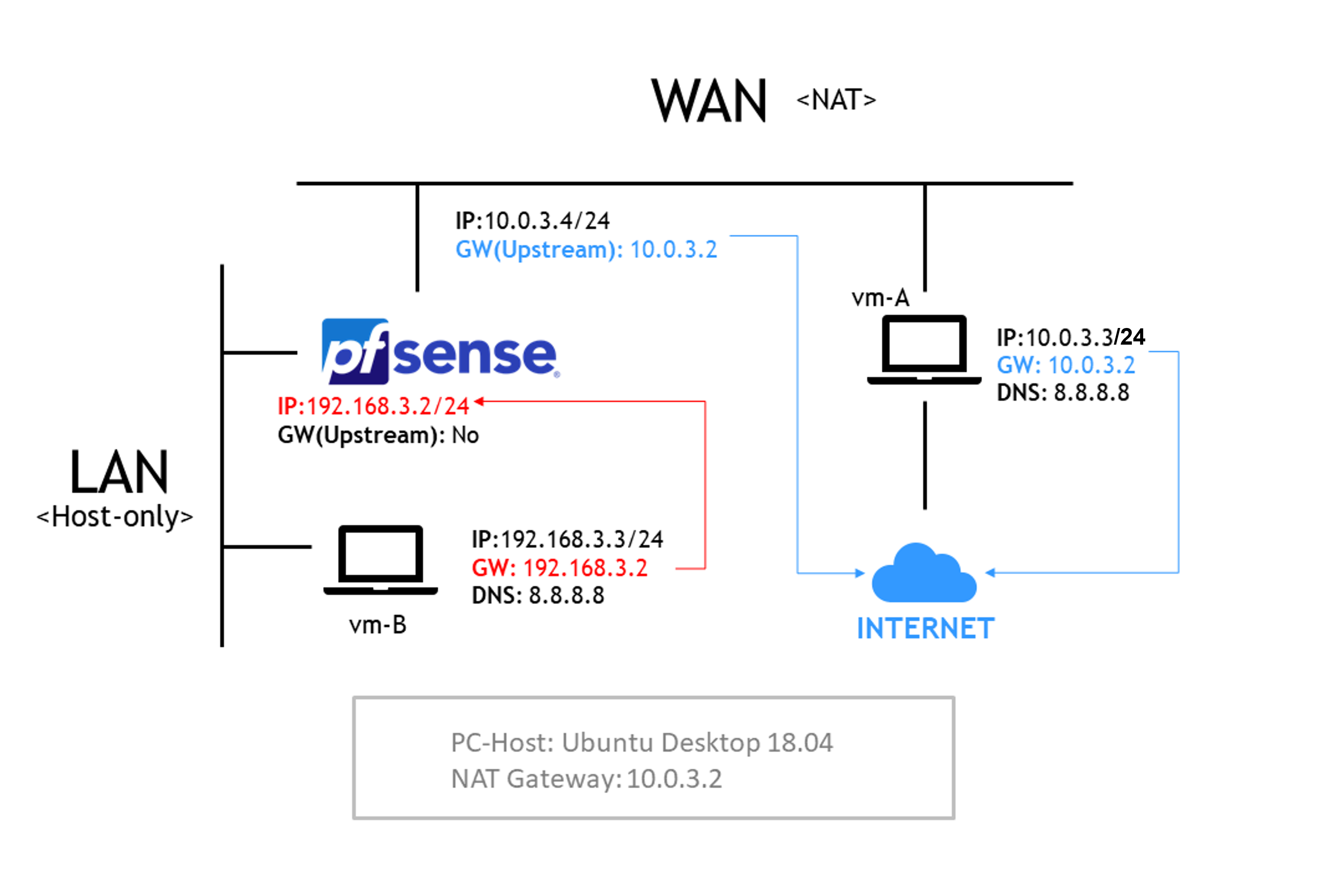
WAN Internet / ISP pfSense Firewall Suricata IDS · NAT · DNS Resolver · OpenVPN LAN (em1) 192.168.1.0/24 Trusted clients DHCP · DNS · VPN exit OPT1 (em2) 192.168.2.0/24 Server / DMZ Selective allow to LAN OPT2 (em3) 192.168.3.0/24 Isolated / Lab Default deny inter-VLAN OpenVPN · Site-to-Site VPN
pfSense lab network architecture — VLAN segmentation and interface assignment
04. Firewall Rule Logic

pfSense processes rules top-down and stops at the first match. That ordering is everything. I learned this the wrong way — I had a broad PASS rule on OPT1 that came before my specific BLOCK rules, so OPT1 could reach LAN freely. Flipping the order immediately fixed it. The rule table below reflects the final working state. The OPT1 BLOCK to LAN rule sits above the general PASS rule deliberately — if it were below, it would never fire.

Interface Protocol Source Destination Port Action Purpose
LAN TCP/UDP LAN net LAN address 443, 80 PASS Allow access to pfSense WebUI
LAN * LAN net * * PASS Full outbound internet access
OPT1 TCP OPT1 net 192.168.1.0/24 8000, 9997 PASS Allow Splunk indexer on LAN
OPT1 TCP/UDP OPT1 net OPT1 address 53 PASS DNS Resolver queries
OPT1 * OPT1 net LAN net * BLOCK Block lateral movement to LAN
OPT1 * OPT1 net * * PASS Internet access allowed
OPT2 TCP/UDP OPT2 net OPT2 address 53 PASS DNS Resolver only
OPT2 * OPT2 net LAN net / OPT1 net * BLOCK Full inter-VLAN isolation
Floating * * * * IDS Suricata inline inspection all ifaces

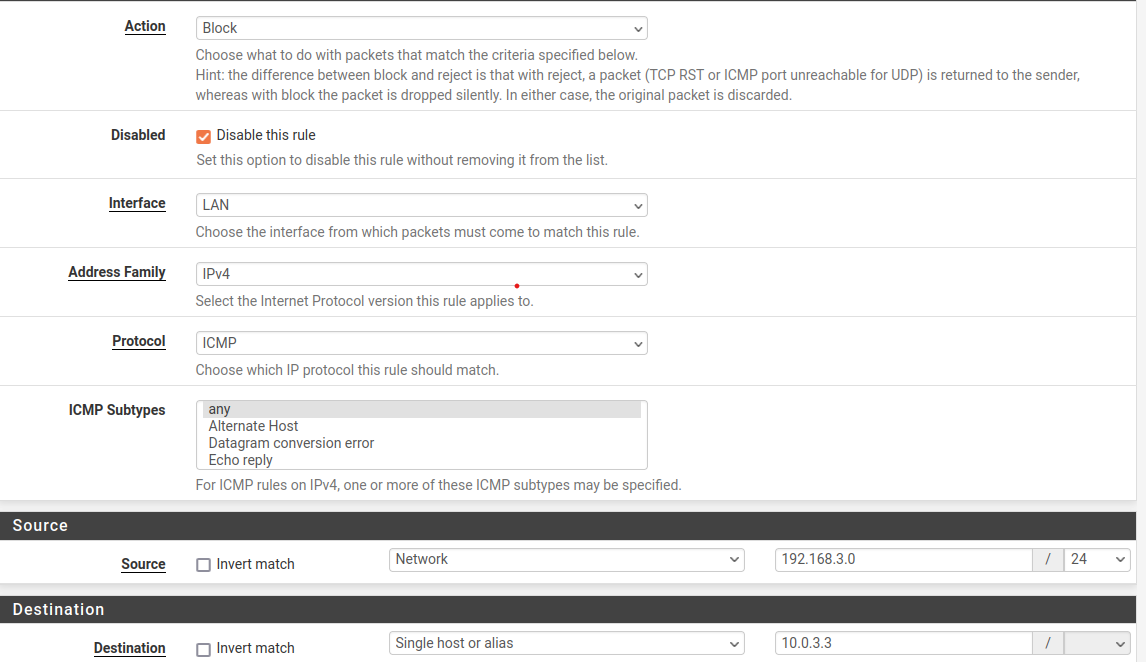
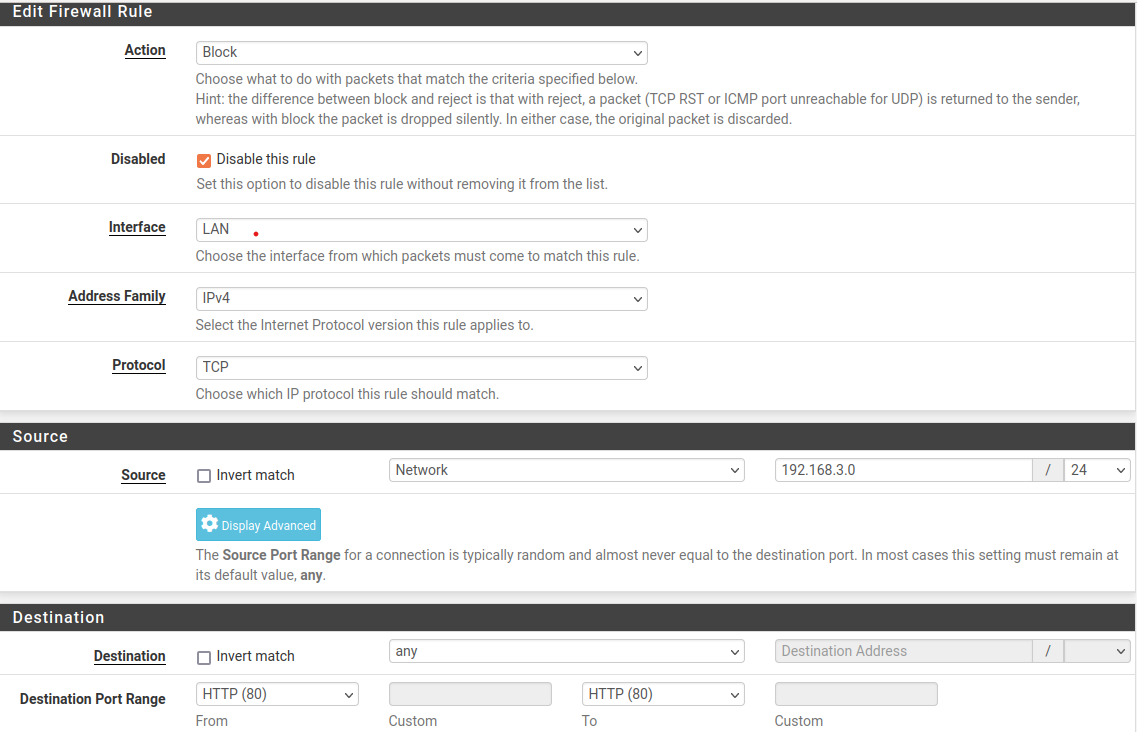
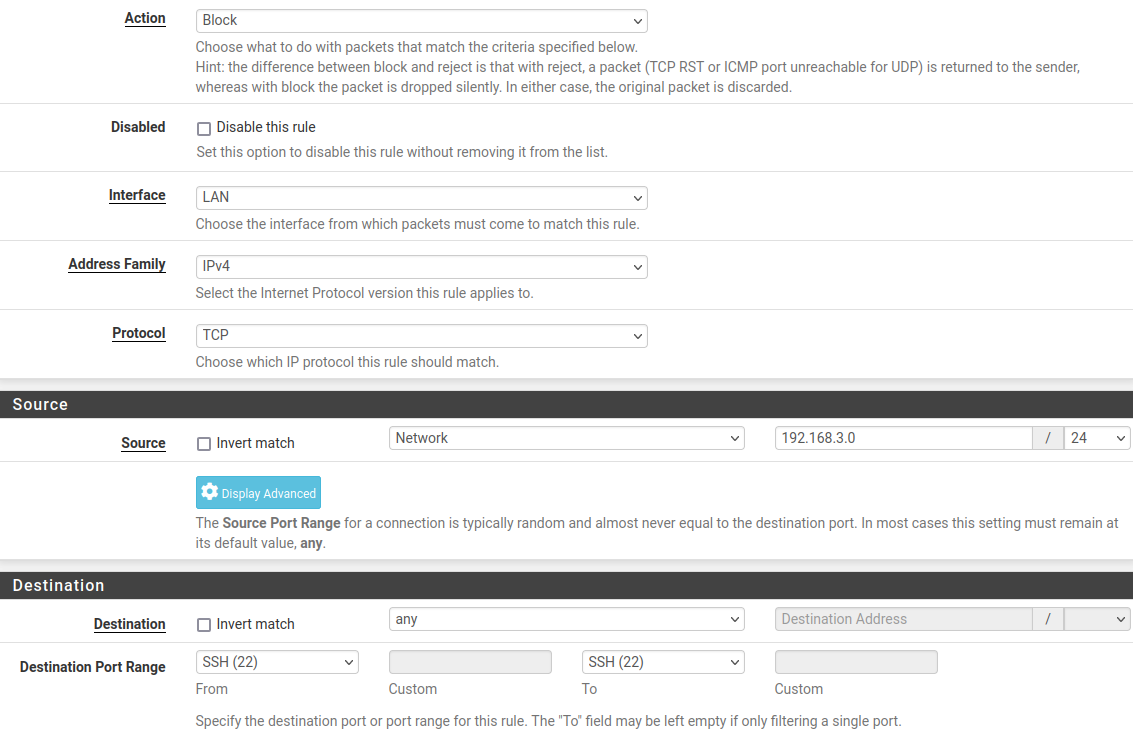
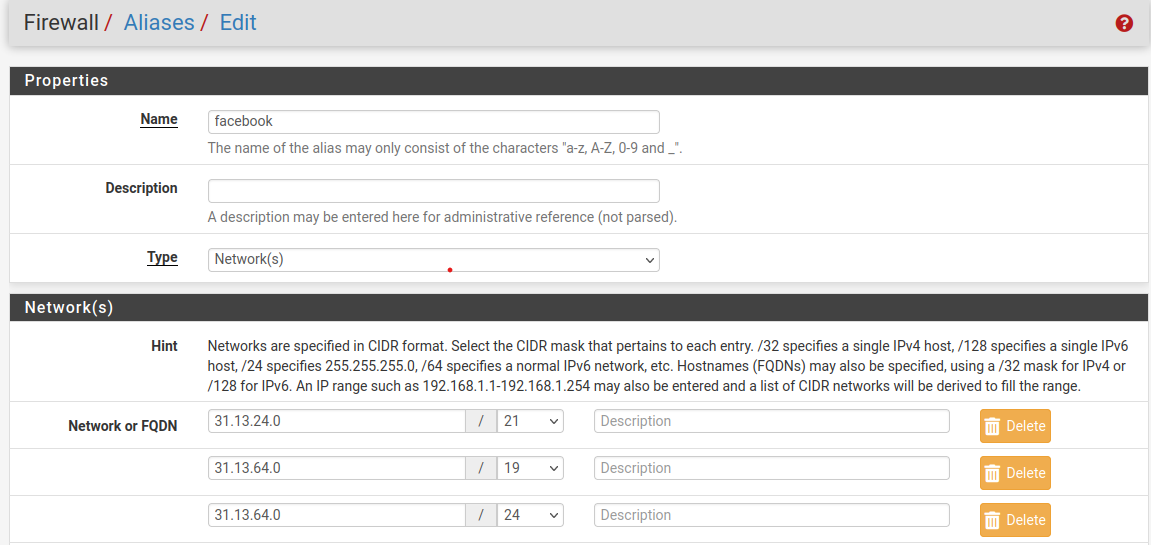
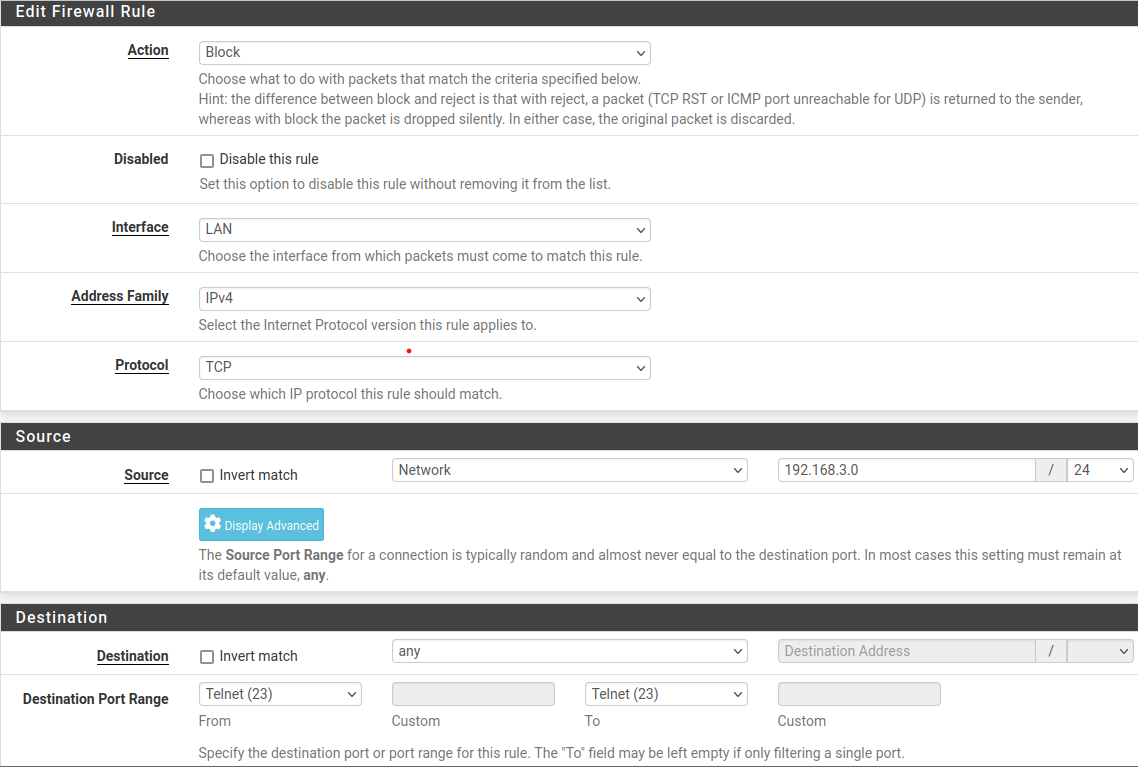
Screenshots from the pfSense rule editor — individual block rules and the consolidated view:
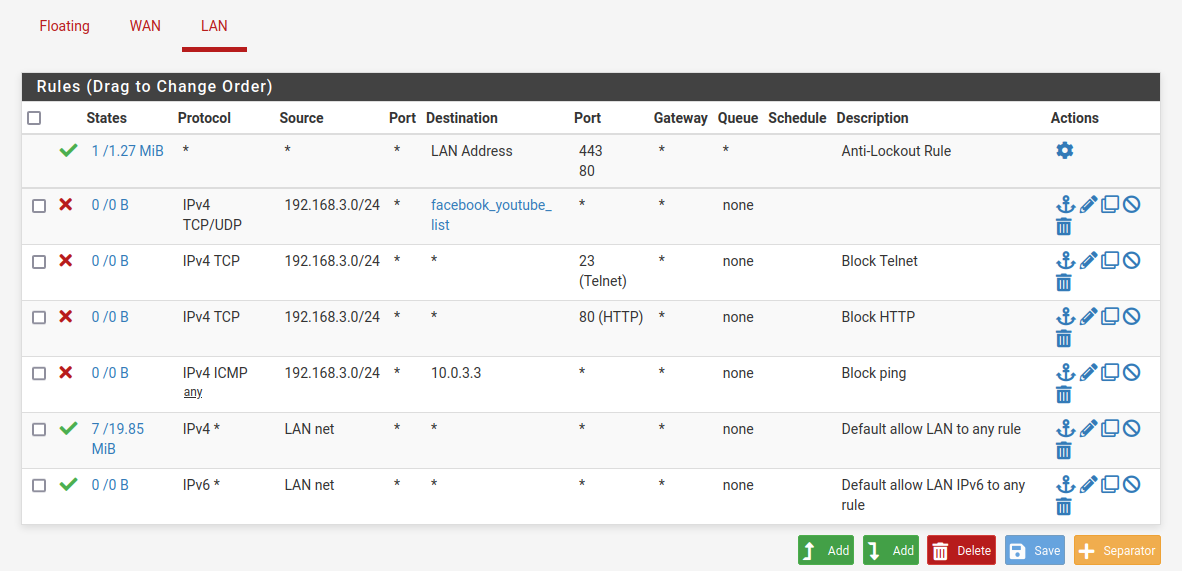
pfSense all firewall rules overview pfSense ICMP block rule between VLANs pfSense HTTP port 80 block rule pfSense SSH block rule for inter-VLAN isolation pfSense alias-based IP group for aggregate blocking pfSense block private network ranges on WAN pfSense Telnet block rule configuration

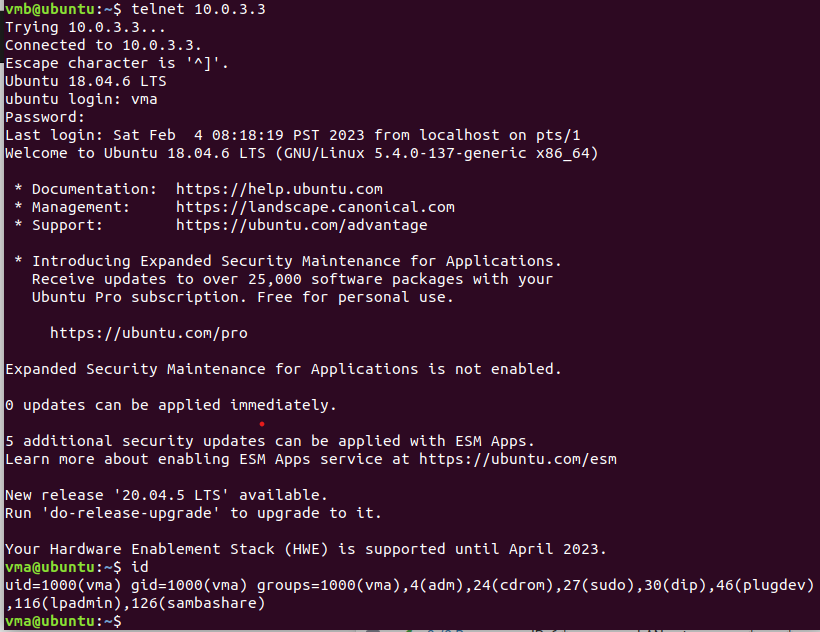
Test results — what blocked traffic actually looks like from the client side. Each attempt produces a clean timeout or connection refused, confirming the rules are firing:
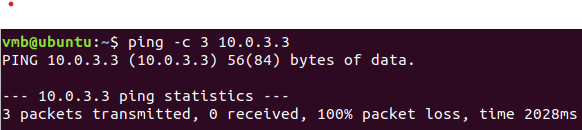
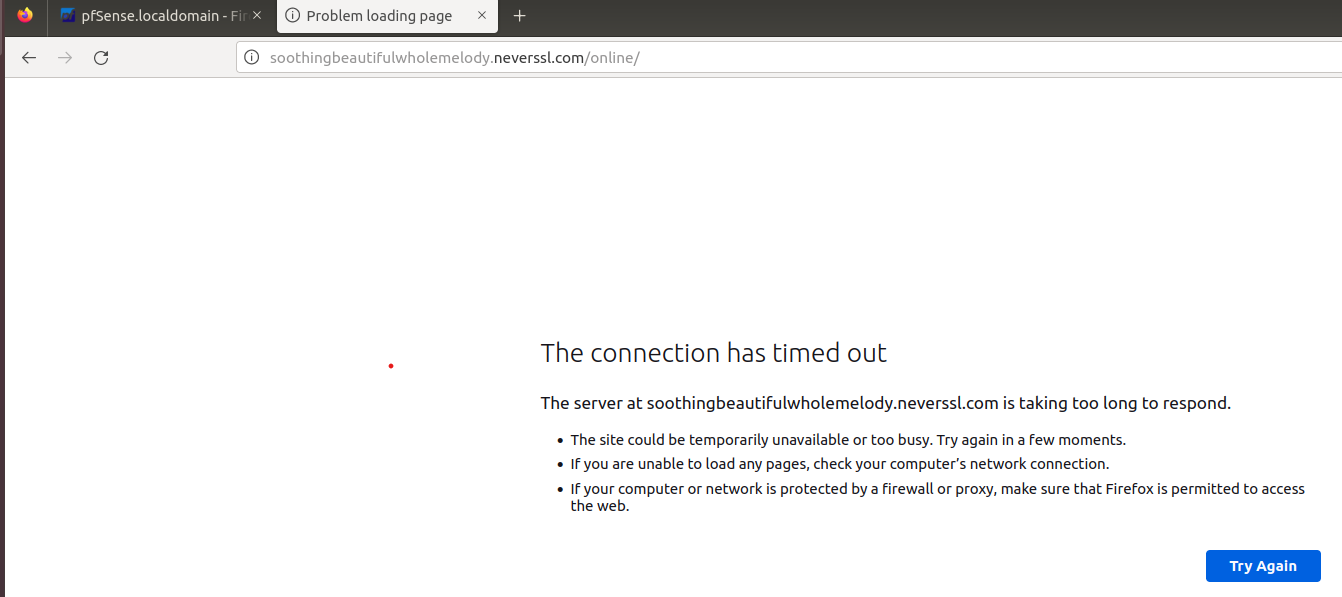
ICMP ping blocked — client-side timeout output HTTP connection blocked — curl timeout from OPT2 Telnet connection refused by firewall rule Telnet second test — persistent block confirmed SSH connection blocked between OPT1 and LAN Private network range blocked on WAN interface
05. Technical Configuration
STEP 01 — VLAN SEGMENTATION
Three isolated segments, each with its own DHCP and DNS scope
Each interface gets its own DHCP server and DNS Resolver instance — so a machine on OPT2 gets a 192.168.3.x address and resolves DNS through the OPT2 gateway, not LAN's. This matters because it makes the isolation structural, not just policy-based. Even if firewall rules were wiped, the segments wouldn't communicate — there's no L2 path between them. The VirtualBox internal network adapters enforce that at the hypervisor level.
STEP 02 — FIREWALL RULES
Rule ordering is the thing that actually matters
pfSense evaluates rules top-to-bottom and stops at the first match. I initially had a broad "OPT1 → any → PASS" rule at the top, which meant nothing below it ever fired. Specific service allowances (like OPT1 → LAN:9997 for Splunk) and the cross-VLAN block rules all have to sit above any general PASS rule. Once I got the order right, I tested by trying to ping LAN from OPT2 — complete silence, no ICMP unreachable, just a timeout. That's the expected behavior for a block rule without logging. Took me a few minutes to confirm the rule was actually firing rather than something else being wrong.
STEP 03 — DNS RESOLVER + NAT
Outbound NAT and per-VLAN DNS policies
Outbound NAT translates all three subnets to the WAN IP for internet access — straightforward. The DNS piece was more interesting. I enabled DNS rebind protection on all segments, which blocks resolvers from returning private-range IPs for public domain queries. It's a minor thing but it prevents a specific class of attack where an attacker-controlled domain resolves to an internal IP to bypass same-origin policies. I also set domain overrides per VLAN so internal hostnames resolve correctly within each segment without leaking to upstream DNS.
STEP 04 — VPN CONFIGURATION
Site-to-site tunnel + OpenVPN remote access
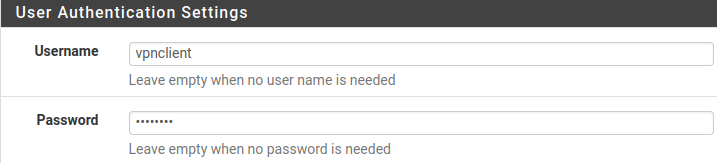
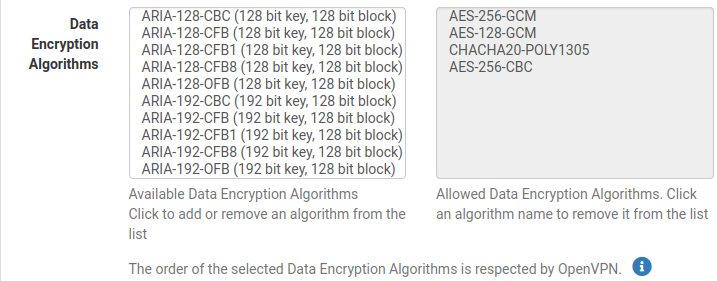
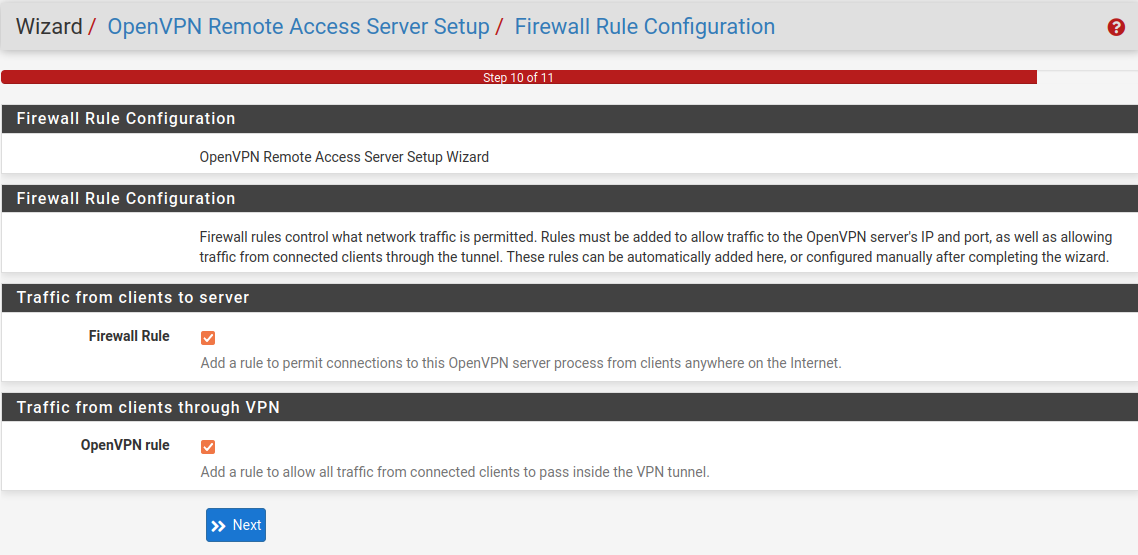
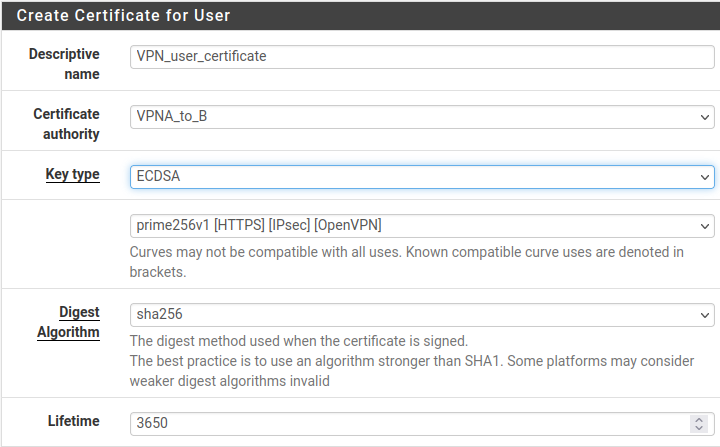
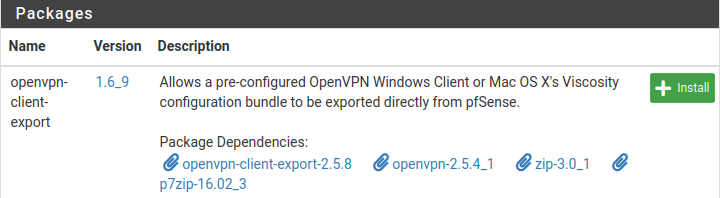
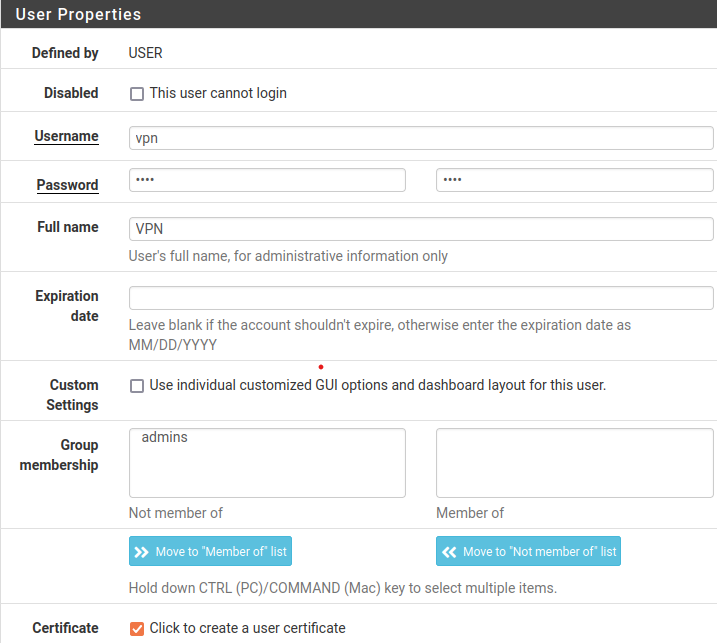
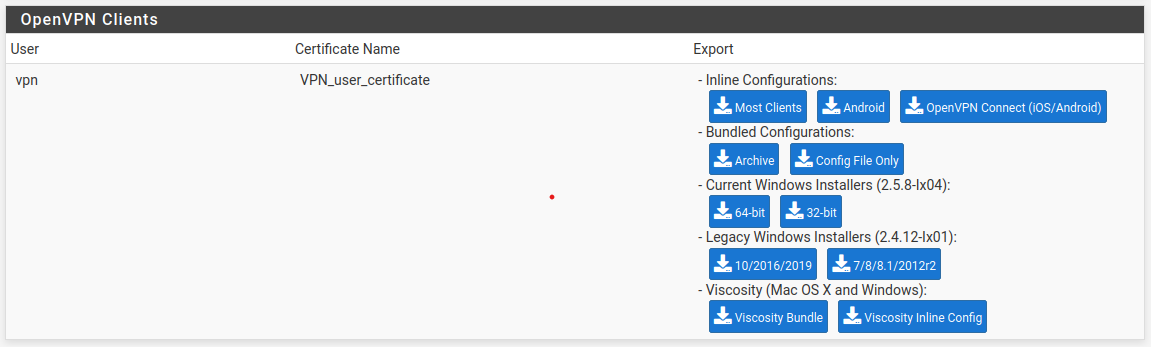
I chose certificate-based auth over shared keys for one reason: a stolen password is useless without the matching certificate. The setup is more involved — create a CA in pfSense's Certificate Manager, issue a server cert, issue per-user certs, export client bundles — but the security model is genuinely better. The OpenVPN server runs on UDP/1194 and clients land on the LAN segment with full internal routing. I also set up a site-to-site tunnel between two VirtualBox instances to simulate a branch connecting back to HQ — mostly to understand how pfSense handles routing across two separate pfSense boxes, which is a common real-world configuration.

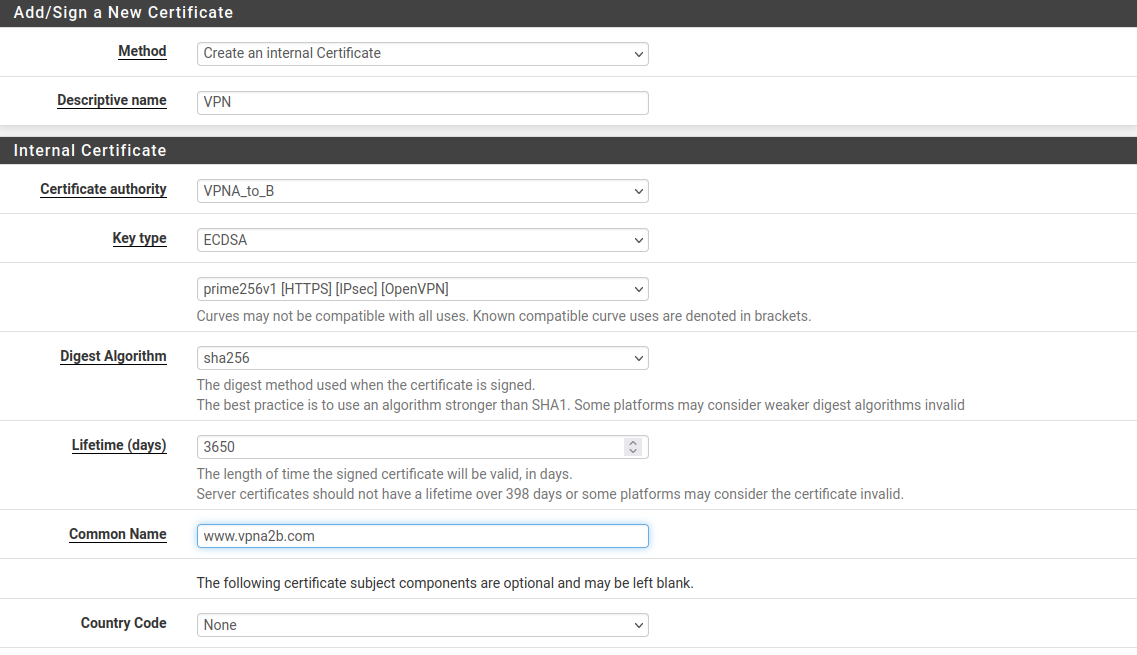
VPN setup from CA creation through client export:
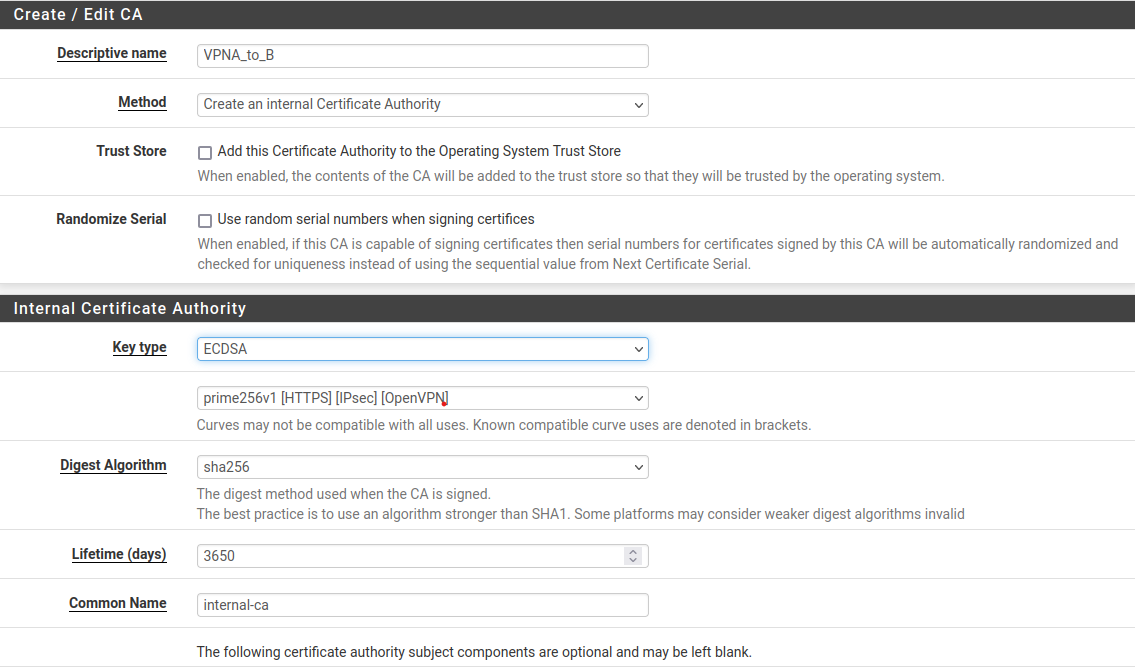
pfSense Certificate Authority creation for OpenVPN pfSense server certificate generation pfSense OpenVPN tunnel network configuration pfSense VPN authentication method settings pfSense VPN data encryption configuration pfSense firewall rules for VPN interface pfSense user certificate for VPN client auth pfSense OpenVPN client configuration export pfSense OpenVPN server host configuration settings pfSense VPN user certificate properties pfSense VPN client config file downloaded and ready
STEP 05 — SURICATA INLINE IDS MODE
Active intrusion detection across all VLAN interfaces
The default Suricata install with ET Open rules fired on almost everything in the first few hours — including my own DNS queries and normal browser traffic. I spent more time on tuning than on the initial setup. The biggest categories of false positives were ET POLICY rules (flagging legitimate services like Windows Update) and some SCAN rules triggering on ARP traffic inside the lab. I suppressed by source IP for lab-internal hosts after confirming the traffic was benign, rather than disabling entire rule categories — that way the rules still fire on anything unexpected coming from outside those known hosts. After a few days of tuning, the noise dropped to a manageable level and actual attack traffic stood out clearly. Running Suricata on all interfaces — not just WAN — was the call I'm most glad I made. Lateral movement from OPT1 shows up on the OPT1 interface. If it were WAN-only, that traffic would be invisible.
suricata/fast.log — red team exercise excerpt ● inline mode active
01/15-14:32:18.124533 [**] ET SCAN Nmap Scripting Engine User-Agent [**] 192.168.3.50:51234 → 192.168.1.10:80
01/15-14:33:41.880211 [**] ET EXPLOIT Metasploit Meterpreter reverse shell [**] 192.168.3.50:4444 → 192.168.1.10:55123
01/15-14:35:02.019847 [**] GPL ATTACK_RESPONSE id check returned root [**] 192.168.3.50 → 192.168.1.10 TTL:64
01/15-14:38:19.443091 [**] ET SCAN Hydra SSH brute-force [**] 192.168.2.55 → 192.168.1.10:22 [34 pkts/s]
01/15-14:41:07.701234 [**] ET POLICY SSH session in progress [**] 192.168.3.101 → 192.168.1.10:22
06. Red Team Integration

The goal wasn't to "pass" a test — it was to understand what my own perimeter looks like to an attacker. OPT2 is the attacker machine. Everything it tries has to go through pfSense. I ran exercises in three stages, deliberately starting simple to confirm the fundamentals held before moving to more complex scenarios.
PHASE 01 — RECONNAISSANCE
Scanning from OPT2 — mostly silence, which is the right answer
I ran a port scan from OPT2 toward LAN hosts. The scan just timed out — no RST, no ICMP unreachable, nothing. That's what a block-without-log rule looks like from the attacker's side. I confirmed the rule was actually firing (not just the host being down) by temporarily enabling logging on the block rule and watching the pfSense firewall log. Suricata also fired on the Nmap user-agent in the HTTP probe headers, which was a useful reminder that IDS detection doesn't require a firewall failure — the scan signature fires even on blocked traffic.
PHASE 02 — TESTING SURICATA SPECIFICALLY
Temporarily opening a rule to see if IDS catches what firewall blocks
To test Suricata's detection independently of the firewall, I temporarily added a rule allowing OPT2 → LAN TCP (scoped to a specific test port) and ran a payload exercise. Suricata caught the reverse shell signature immediately — the alert showed up in the Suricata web UI and forwarded to Splunk within a few seconds. I closed the test rule right after. What this confirmed: the firewall and IDS are independent layers. A misconfigured rule that opens too much doesn't mean the intrusion is invisible — Suricata still fires on the traffic pattern regardless of whether the firewall permitted it.
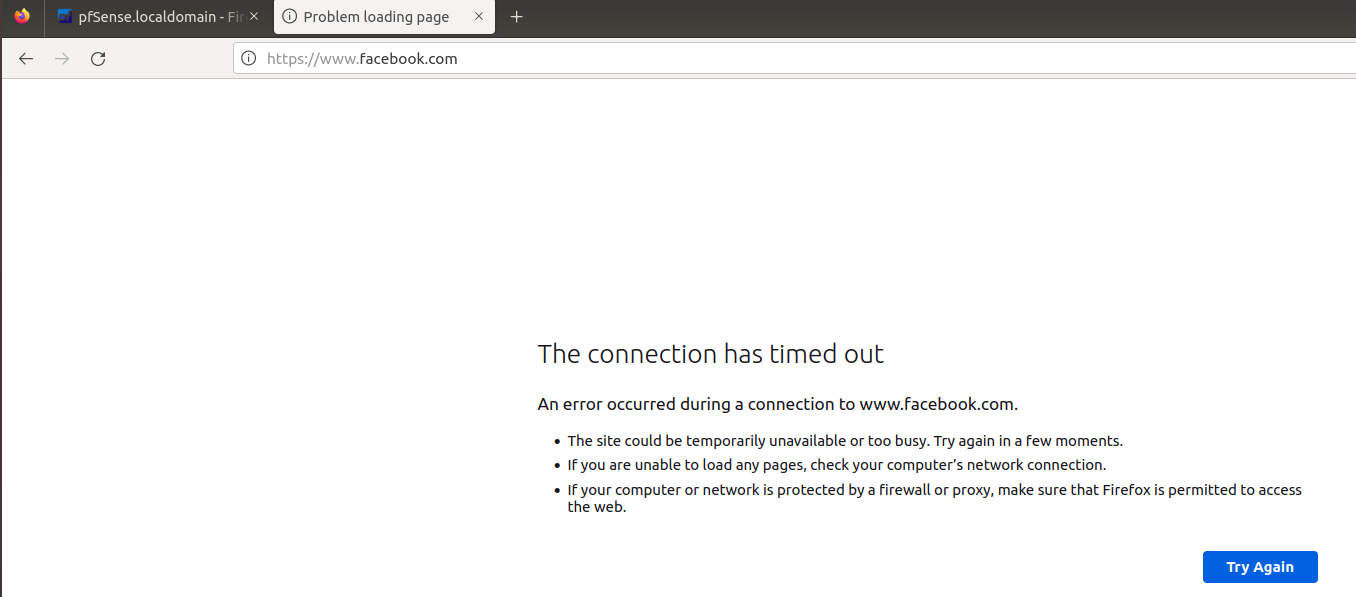
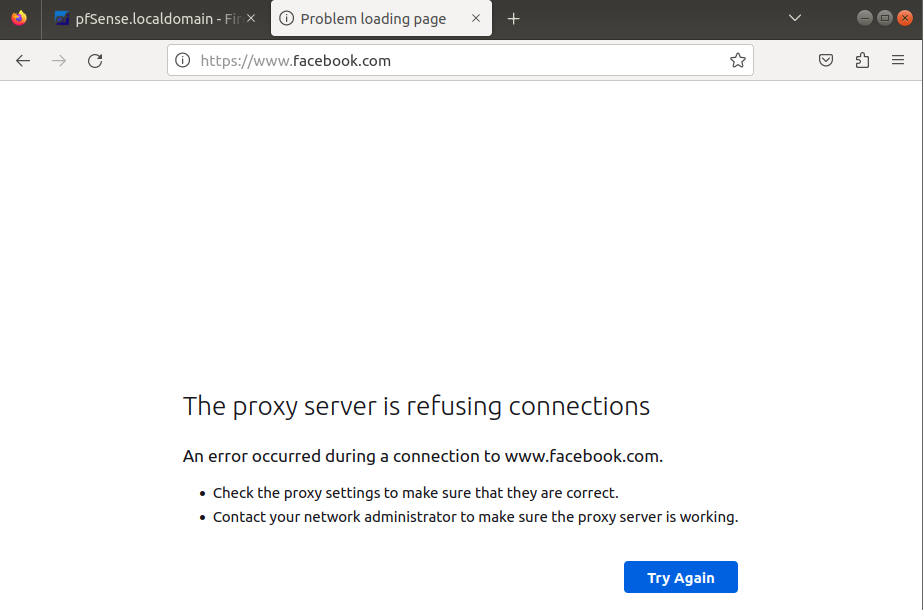
Facebook blocked by pfSense firewall rule — browser error Facebook bypass attempt via alternate port — also blocked Proxy bypass attempt through OPT2 — caught and blocked
PHASE 03 — LATERAL MOVEMENT FROM DMZ
SSH brute-force from OPT1 — this is why all-interface IDS matters
I launched an SSH brute-force from OPT1 toward a LAN host. The firewall blocked the connection (OPT1 doesn't have a rule permitting SSH to LAN), and Suricata fired on the OPT1 interface — not WAN. That's the important part. If Suricata were only on WAN, this event would be completely invisible. A compromised DMZ server pivoting toward production would generate no WAN traffic at all. It took this exercise to make me fully appreciate why binding Suricata to internal interfaces isn't optional — it's what separates network monitoring from perimeter-only monitoring.
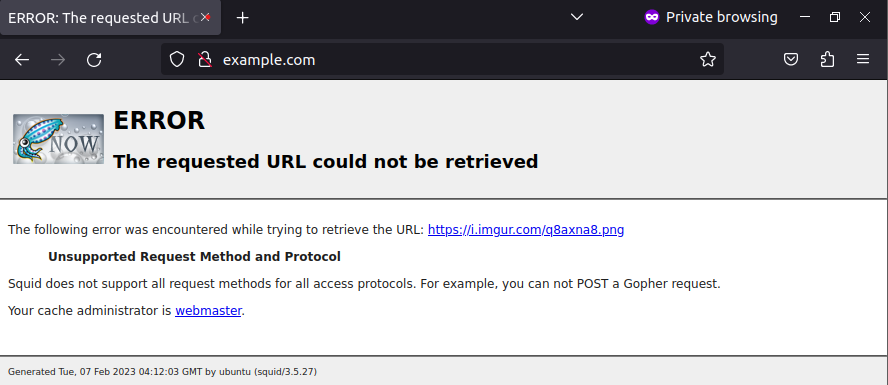
SSH tunnel attempt from OPT2 — detected by Suricata Squid transparent proxy redirect intercepting OPT2 traffic Squid proxy continued — request log showing intercepted traffic

"The scan from OPT2 just timed out — no response at all. That's the correct behavior, but it took me a few minutes to distinguish 'rule is working' from 'host is down.' Confirming your own controls are actually firing is a skill."

07. Technical Specifications
PLATFORM
pfSense CE 2.7.x
VirtualBox 7.x host
4 virtual NICs (WAN + 3 VLANs)
2 vCPU / 2 GB RAM allocated
NETWORK
LAN — 192.168.1.0/24
OPT1 — 192.168.2.0/24
OPT2 — 192.168.3.0/24
WAN — bridged to host adapter
SERVICES
DHCP Server (per-VLAN scopes)
DNS Resolver (Unbound)
OpenVPN server (UDP/1194)
IPSec site-to-site tunnel
SECURITY
Suricata inline IDS (NFQUEUE)
ET Open + emerging-threats rules
pfBlockerNG (IP/GeoIP blocklists)
Logs → Splunk via syslog
08. Key Takeaways
09. Reference Documentation

Official Netgate documentation and community resources used during this lab build.

← Back to Projects